
Documentation
This page describes how you use jSite in order to insert websites that you
created into freenet.
Contents
- About Freesites
- The Menu
- The “Projects” Page
- Adding a Project
- Deleting a Project
- Cloning a Project
- Editing a Project
- Managing Keys
- The “Copy URI to Clipboard” Button
- Inserting a Project
- The “Always Force Insert” Checkbox
- The “Ignore Hidden Files” Checkbox
- The “Re-scan” Button
- The “Default File” Checkbox
- The “Insert” Checkbox
- The “Force Insert” Checkbox
- The “Redirect” Checkbox and the “Custom Key” Input Field
- The “Rename” Checkbox and Input Field
- The “Node Manager” Page
- The Node List
- The “Add Node” Button
- The “Delete Node” Button
- The “Name” Input Field
- The “Hostname” Input Field
- The “Port” Input Field
- The “Preferences” Page
- The “Directory for temporary files” Section
- The “Location of configuration file” Section
- The “Generate Final URI Early” Checkbox
- The “Priority” Select Box
- The “Manifest Putter” Select Box
- The Command Line Interface
- Known Bugs and Limitations
About Freesites
A “freesite” is like a normal website. It consists
of HTML pages, images, may have CSS stylesheets and everything
else you know from the web, with a couple of exceptions,
though: Freenet’s content filter will filter out
javascript, and it’s not (yet) (easily) possible to have
dynamic content on a freesite. Oh, and a freesite only exists
in Freenet, i. e. it is not accessible from the normal
internet unless you have access to a Freenet node.
Also, freesites are immutable. Once you have inserted a
freesite it can not be changed—not by you, not by The
Evil Government, not by the developers, not by anyone. It will
remain exactly that way until it drops from all datastores. The
previous version of Freenet (the 0.5 network) had two different
mechanisms to circumvent this restriction: you could create a
freesite that would have to be updated in regular intervals
(called “date-based redirects” or “DBR
sites”) or you could create a new edition of your
freesite whenever you wanted to change something (called
“edition sites”). Both of these methods had
advantages and disadvantages.
Freenet 0.7 instead uses another mechanism to allow sites to be
perceived as updatable. It is similar to the edition sites from
0.5 but the node automatically searches for newer editions and
presents them to you, even when you initially asked for an
older edition. This way freesites can be updated at any time
and (almost) transparently. Cludges like DBR and hacks like
links to the next x editions are no longer necessary.
So, basically freesites in the 0.7 network are still edition
sites. The reason that the edition number is not shown in any
dialog anymore (except for when the final URI is shown) is that
you no longer have to care about the the edition number because
the node handles it all for you!
When showing the edition number embedded in the final URI of
your freesite, jSite takes greatest
care to automatically show the correct number. Due to certain
circumstances (e. g. inserts with another tool) this is
not always possible before and during an insert. When the
insert is finished the correct edition number is shown, though.
Incremental Inserts
Version 0.10
jSite has a mechanism to detect if
files changed since the last insert. All non-modified files are
not inserted completely again but will only be inserted as
redirects to the earlier version. This will speed up insert time
(in some cases considerably), reduce the space your site takes
up in Freenet and automatically resuses content that you already
have inserted.
The Menu
The menu is available on every page of the jSite because it contains commands and
options that should be accessible from everywhere in the
program.
The “Languages” Menu
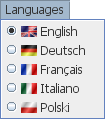
This menu contains all available languages for jSite. When you select a new language it
is changed immediately (since version 0.4.9.3, in earlier
versions you had to restart jSite
for language changes to take effect).
Currently jSite is available in
three languages: English, German, and French. The German and
the English translation are maintained by the author. The
French translation has had several maintainers so far:
NextGen$, batosai, and Clement Vollet.
Up to version 0.8 there also was an Italian and a Polish
translation (the Italian version was maintained by Luke, and
the Polish translation has been supplied by xpdf).
Unfortunately those had to be removed because they were not
updated anymore. The same fate might be in store for the
French translation, too, so if you feel that you are able to
supply a new translation, or that you are able to update an
existing translation, by all means contact me! Contact
data can be found on the index page.
The “Nodes” Menu
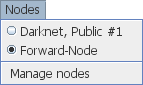
This menu lets you select the node you will be using for
inserting your site. Most people will probably only have a
single node listed in here but there are cases imaginable where
you might have several nodes available and want to switch
between them.
Switching between different nodes will have no immediately
visible effect (besides the marker in the menu). The selected
node will take effect as soon as you start inserting a site.
The last point in the menu takes you to the Node Manager Page.
From here you can add new nodes, or remove or edit your
existing nodes.
The “Options” Menu

This menu only has a single entry, “Preferences.”
It will show a page that lets you enter some global settings
for jSite.
The “Projects” Page
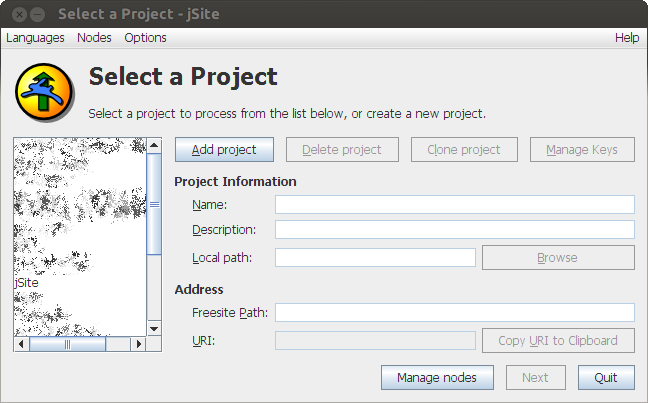
This is the first screen you see when you start jSite. (Of course you will not have my
projects in your list, you will start up with an empty list
instead.) This page lets you manage all your projects, create
new projects as well as edit or delete existing projects.
Let’s start by adding a new project. Press the “Add
project” button.
Adding a Project
A new project is created when you press the “Add
project” button. It gets a default name, and a new
key pair for the address is created.
Adding a project will only work if your have your node
configured correctly. A default node that runs on your computer
and listens on the default port will be pre-configured for you.
If your node uses a different port or runs on a different
machine you have to go to the “Node Manager” page
first and configure your node!
First you should enter a new name for your project. Make sure
that the project is selected in the list on the left side then
simply edit the field named “Name.” Your changes
take effect immediately as you can see in the list on the left
side while typing the new name.
The description you can enter in the field below the name is
completely optional and only for your orientation. You could
enter what the site you want to insert is about, or you might
just leave it blank. The choice is yours.
The next thing would be to choose the path on your hard disk
that should be uploaded as your new freesite. Press the
“Browse” button and select the directory that holds
your local copy of your freesite.
The content of the fields “Request URI” and
“Insert URI” should not be modifed,
unless you really know what you are doing!
The last field (named “Path”) though should be
changed. It should be a small descriptive name that is appended
to the request URI, completing the requirements for a freenet
URI. Choose something short here. (I chose “jSite”
for this site, of course. Look in the URL bar of your browser
and you will see what I mean.)
So, now you have created a new project for a freesite. What
else can you do here?
Deleting a Project
Whenever you decide that you want to get rid of a project all
you have to do is to select the project in the list and press
the button labeled “Delete project.” Before the
project is blown to digital nirvana you will be asked whether
you really want to do that.
Well, that was easy. But of course there is more. Do you want
to know more?
Cloning a Project
So, you have a freesite running successfully for some time now
and have built up quite a reputation. Now you want to create a
second site under the same key space so that people will give
the new site instant credibility. You could of course add a new
project and copy the URIs by hand but actually this is exactly
what the “Clone project” button is for.
So, select your successful project and the press the
“Clone project” button. A new project is created
and instantly selected so that you can start changing
parameters (like the name, local path, and URI path) right
away.
Now you can create, delete, and clone projects. But what if you
simply want to change the local path of a project?
Editing a Project
Editing a project is perhaps the most simple operation that can
be done on this page. Select the project you want to change in
the list on the left side and change whatever parameters you
want to change. That’s it.
Managing Keys
Sometimes a real need arises to change the keys for a project.
For example, you created a new project and inserted a few test
versions, but now you are ready for the real thing! You have
several possibilities to change the keys for your project but
they all start by pressing the “Manage Keys” button on the
project page.
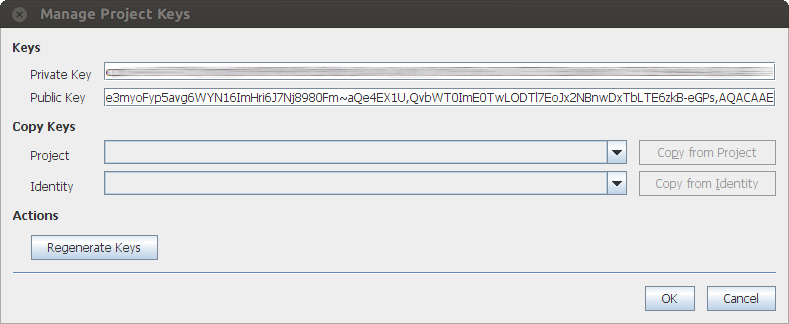
The key dialog contains your current key pair and presents to
you a list options: you can copy the keys from another project,
from an identity of your WebOfTrust plugin (requires said
plugin which you can install from the Plugin Manager page of
your node), or you can generate a new random key.
The identities from the WebOfTrust plugin are retrieved in the
background. Sometimes it can take quite a while to get the list
of your identities from the WebOfTrust plugin. Due to the way
the WebOfTrust plugin works restarting jSite will not speed up this
process!
Be aware that if you change the keys for a project and confirm
these changes by pressing the “OK” button, two more things
happen: the edition of the project is reset to 0, and your
project will be forced to insert all files on the next insert.
“Copy URI to Clipboard” Button
Freenet URIs are not what one might call handy. In fact they
are getting longer and longer all the time so remembering them
is something that can not simply be done. So if you need to
give the URI to somebody else (be it via some IM protocol or in
an email or a text file or whatever), select the project that
you want to get the URI for and press the “Copy URI to
Clipboard” button. Watch out that you first paste the URI
somewhere before you quit jSite otherwise the content of the
clipboard will be lost.
Inserting a Project
Okay, so you have created a nice looking page and want to show
it to the rest of the world. Let’s do it!
Select your project in the list, make sure that you have entered
all necessary information, and finally press the
“Next” button. You will be taken to the
“Project Files” page.
The “Project Files” Page
This page is split up into two areas. In the upper area a list
of files in your project is shown. The lower area contains
options that you can tweak for a file.
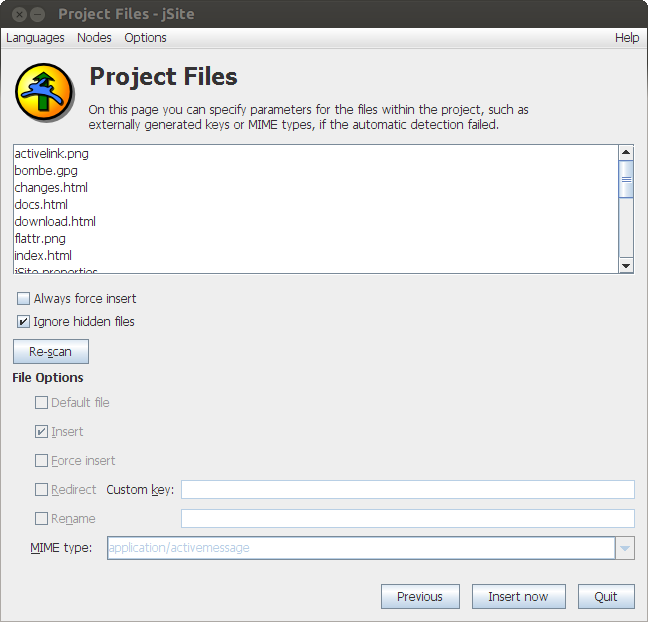
The settings should be okay for most of the files. If you feel
the need to modify something, here’s what each of the
options does.
The “Always Force Insert” Checkbox
Version 0.11
Sometimes it is advisable to not reuse files from your last
insert, e. g. when it has been a very long time since your
last insert and you have reason to believe that most of the
files have already dropped out of Freenet.
While you do have the possibility of forcing inserts for single
files doing so for multiple files becomes strenuous quite fast.
In such a case, simply use this checkbox and have all files
inserted.
The “Ignore Hidden Files” Checkbox
Version 0.9
This option determines how jSite
treats hidden files. Note that the concept of “hidden
files” has different meanings on Windows and Linux
platforms: Windows has a dedicated “hidden”
attribute per file, whereas in Linux files that start with a
“.” are treated as being hidden.
So, when this checkbox is checked, jSite does not insert files that are
treated as hidden by the operating system. This checkbox is
checked by default to remain backward-compatible with earlier
versions of jSite that did not have
this option but never inserted hidden files.
The “Re-scan” Button
This button can be used to trigger a rescan of the project
directory, e. g. when you have added or removed files
after displaying the “Project Files” page and want
to change some file-specific options before inserting them.
The “Default File” Checkbox
Each project can have a default file. The default file is
comparable to the
index.html in traditional
webservers, i.e. the file that is shown when you do not specify
a name of the a file to show. Of course there can only be one
default file per project.
The “Insert” Checkbox
Inserting large projects can take quite some time (at least
with the current version of jSite).
As your project needs to be inserted completely each time you
update something this can be really disturbing.
You can insert large files beforehand (using your node’s
web interface or client applications like Thaw) and tell
jSite to create a redirect for that
given file. This way the file does not have to be uploaded
every time and you can save time when inserting.
So when you uncheck the “Insert” checkbox the
“Custom key” textfield will become available. Just
enter the key of the file here and jSite will take care of everything.
The “Force Insert” Checkbox
Version 0.10
To force jSite to insert a file even
if it has not changed since the last insert, simply tick this
checkbox. It will only be enabled if jSite would not insert this file on its
own, i. e. if a file was modified since the last insert and
jSite would thus always insert it,
this checkbox would be disabled.
The “Redirect” Checkbox and the “Custom Key” Input Field
Sometimes you want to include a file as if it were a part of
your page, or maybe you want to include a file that you inserted
before you had the idea of creating a freesite. To do that with
jSite you first have to create a dummy file
in the directory where you want to the file to be. The you can
select the entry in the file list on the top of the page and
check the “redirect” checkbox. Now you can enter the previously
retrieved key into the “custom key” input field. This way only a
redirect to the key will be created. The dummy file you created
will not be inserted!
The “Rename” Check and Input Field
Version 0.9
Normally you should be able to create files on the local
filesystem exactly how you want them to be in Freenet. If,
however, you need to rename files before inserting them into
Freenet you can choose to let jSite
handle that for you. Tick the checkbox, enter a new name, et
voilá.
Of course it is not allowed to insert a site that contains a
single name more than once; jSite
will perform a verification before the insert starts and notify
you if there is any problem.
The Node Manager Page
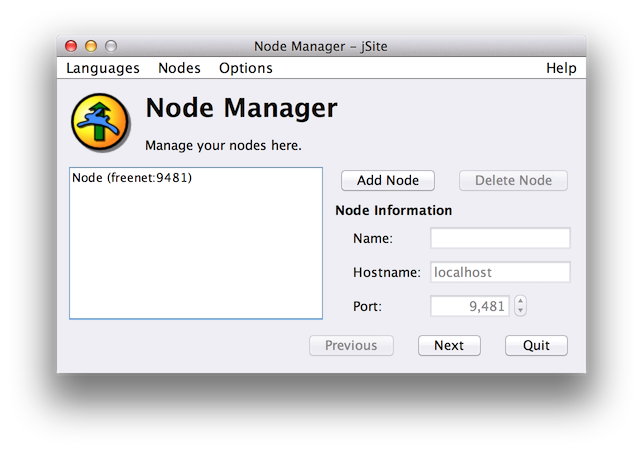
This is the place where you configure which Freenet node jSite will talk to. Most people will only
have a single node configured because only have a single node.
However, if you have multiple nodes available and configure
them here, jSite will always only
use a single node at a time. It is not possible to “split” an
insert over mulitple nodes.
The node that is used by jSite is
selected in the “Nodes” menu.
The Node List
This list shows all currently configured nodes. By selecting a
node you can edit or delete it on the right side of the dialog.
The “Add Node” Button
Press this button to add a new node. Starting from Version
0.11.2, this will select the new node for editing.
The “Delete Node” Button
This button will only be active if a node is selected in the
list. When pressed, it will ask for confirmation before
deleting the selected node.
The “Name” Input Field
This sets the name of your node. This name is used in the “Nodes” menu to allow easier selection of a
node.
The “Hostname” Input Field
Here you configure the hostname of your Freenet node. Normally
this should be “localhost” but if your node runs on a different
machine, enter its hostname here. Hostnames, fully-qualified
domain names, and IP addresses are valid here.
The “Port” Input Field
This is the FCP port of your Freenet node. Normally this should
be “9481” but if you are running several nodes on a single
machine you need to configure each node’s FCP port number here.
The “Preferences” Page
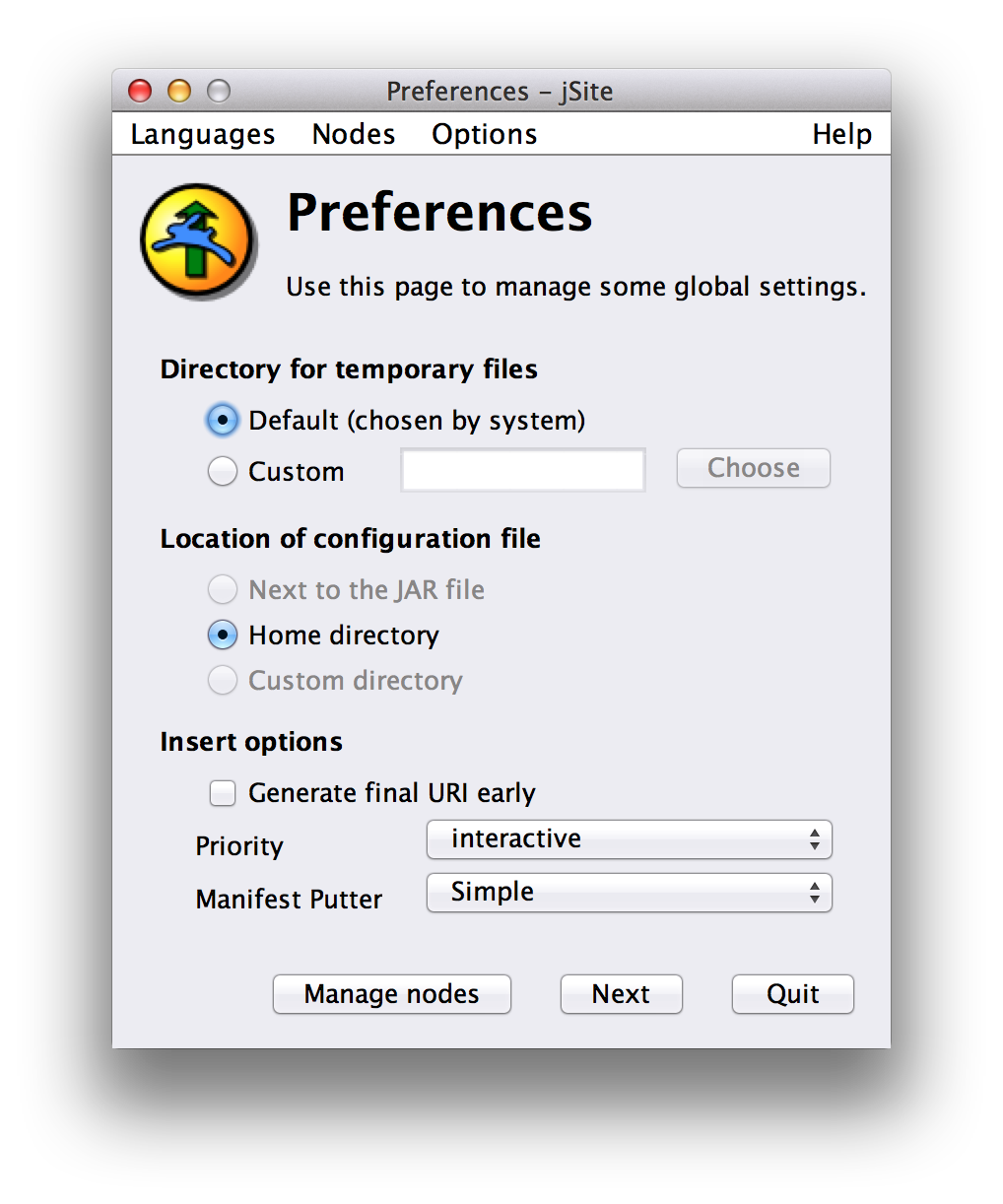
This page lets you adjust some settings that influence jSite’s behaviour. Settings generally take
effect as soon as you click the “Next” button to return to the
Projects page.
The “Directory for temporary files” Section
jSite creates temporary files during
an insert. To prevent these temporary files from ending up on a
disk where they are susceptible to forensic examination you can
store the temporary files on an encrypted drive by selecting the
“Custom” option and choosing a directory. The “Default” option
will use your operating systems temporary paths (as supplied by
Java’s runtime environment).
The “Location of configuration file” Section
Version 0.9.3
This option shows where the configuration file will be saved to
upon quitting jSite. If you have not
changed the option it will also show you where the configuration
file was loaded from. Depending on how you started jSite, some of the options may be
unavailable; the “next to JAR file” can only be selected when
jSite is run from a JAR file (e.g. by
double-clicking the JAR file), and the “Custom directory” option
is only available if you started jSite with the
--config-file
command-line options.
The “Generate final URI early” Checkbox
Version 0.10
This option tells your Freenet node to generate the resulting
URI of your insert as early as possible. It will put some
strain on your node to calculate all URIs before they are
actually needed and may cause some of them to be calculated
more than once. The only reason to use this option is when you
have inserted new editions of your freesite using other means,
or if you restored an older version of your jSite configuration file and you need to
know the real edition of your new insert as soon as possible.
The “Priority” Select Box
Version 0.10
This option lets you select the priority of your insert. The
available priority levels are sorted, from minimum priority
(with which an insert will make almost no progress at all) to
maximum priority. The default (“interactive”) should be fast
enough without blocking other requests your node is processing.
The “Manifest Putter” Select Box
Version 0.10
This option lets you select the “manifest putter” used by your
node to distribute your files into different containers when
necessary. The default option (with is confusingly not
named “default” but “simple”) should be good enough.
The Command Line Interface
Even though jSite does have a really
nice user interface it appears to be completely useless if you
do not want to or can not use it while sitting in front of your
machine. Maybe you want to insert a directory every day for
backup purposes? Or maybe you are not at home but need to
insert this directory right now?
Luckily, jSite can help you in these
situations, too. jSite contains a
command line interface (CLI) that can be used when logging into
your machine from somewhere else, or even for completely
unattended inserts, for example executed by a cron job.
The CLI is started by the following command line:
java -cp jSite-0.11.1-jar-with-dependencies.jar de.todesbaum.jsite.main.CLI
When invoking the CLI like this, it will output the following
syntax information.
Parameters
--node=<node name>
--project=<project name>
--local-directory=<local directory>
--path=<path>
--edition=<edition>
A project gets inserted when a new project is loaded on the command line, or when the command line is finished. --local-directory, --path, and --edition override the parameters in the project.
--node=<node name>
--project=<project name>
--local-directory=<local directory>
--path=<path>
--edition=<edition>
A project gets inserted when a new project is loaded on the command line, or when the command line is finished. --local-directory, --path, and --edition override the parameters in the project.
So, to insert the project named “My Flog” using the CLI you
would simply call:
java -cp jSite-0.11.1-jar-with-dependencies.jar de.todesbaum.jsite.main.CLI --project="My Flog"
All parameters are handled in the order you specify them. So
before you change the local directory (using --local-directory) of a project you
have to load a project (using --project). A project is inserted when
--project is found on the command
line again, or when the command line is finished.
When you have defined several nodes in jSite’s node manager you can select which
node will be used for inserting your projects using --node. If you do not explicitely
choose a node, the default node configured in jSite is used.
Known Bugs and Limitations
This sections tries to list issues that are known to the author
but have not yet been tackled (either because of lack of time
or lack of interest).
- Persistent requests are not supported, i.e. jSite has to be running while your insert is running.
- As a result of that limitation, only a single insert can run at a time.
For a more complete list of issues and the possibility to add
suggestions and bug reports of your own, head over to bugs.freenetproject.org
(not anonymous) and check the
jSite
project.